Opinions expressed on this blog are my own and do not represent any other organization or affiliation I may have.
Showing posts with label apps. Show all posts

Friday, 10 January 2014

Apps for creative story writing


This blog wrote a great post on apps to help students with creative story writing:
Today, there are lots of apps that can help students generate creative story ideas. Here are five worth taking a look at.
Things to Think About is a free iPad app that offers 100 writing prompts created by students for students. The prompts were created by 2nd through 5th grade students in Jackson County, Michigan. The app itself was built by two high school students in the same county. Things to Think About has writing prompts spread across twelve categories. Each prompt has a picture drawn by a student. A short audio recording of a student reading each prompt can be heard too.
Write About This is an iPad app (free and paid versions available) containing visual, text, voice writing prompts for students. Students can respond to the writing prompts they see by writing directly in the app or anywhere else that you want them to write. Write About This allows students and teachers to create their own writing prompts too. To create a writing prompt you choose  picture from your camera roll, type a prompt, then record your voice to go along with the prompt. Prompts and responses to prompts can be shared via email. Sharing via email is disabled by default. Sharing can be activated in the app’s settings. The free version of Write About This contains 50 prompts. The paid version of Write About This (currently priced at $3.99) has nearly 500 prompts.
Shake-a-Phrase is a fun iPad app (currently priced at $1.99) for elementary school and middle school students to use to start stories and practice recognizing parts of speech. Shake-a-Phrase has three basic modes; shake it, story starter, and quiz mode. Each mode has five themes; animals, monsters, fairytales, sports, and random. In “shake it” mode students shake their iPads to have complete, but random sentences appear on their screens. The “story starter” mode presents students with a new random story prompt each time they shake their iPads. In both of these modes students can favorite sentences and prompts to refer to later. Shake-a-Phrase’s quiz mode presents students with random sentences in which they have to identify nouns, adjectives, verbs, conjunctions, and prepositions.
Brainstormer is an iPad app (current price $1.99) that started out as a website in 2009. The web version has been replaced the the iPad app that quickly generates story starters for you. The basic Brainstormer app has three wheels of words and themes that you can spin. You can spin each wheel separately until you have a combination of words that you think you can use. When you have selected a story starter you can share it with others through email, Twitter, or Facebook.  That’s all there is to the basic Brainstormer app. You can add more words and themes to the app through in-app purchases of “character creator” and “world builder.”
Sentence Builder from Abitalk is a series of iPad apps designed to help elementary school students learn to construct sentences. The app asks students to build sentences about the pictures that they see in the app. Each picture is accompanied by a set of words that students drag and drop into place to write the sentence that they hear read by the narrator. For example, in one picture children will see two people running and they will have to write the sentence that they hear the narrator read. Sentence Builder will tell students if they have written the sentence correctly or not. Sentence Builder allows parents and teachers to create their own lessons. To create a lesson start by selecting a picture from your iPad’s camera roll then write out the sentence that you want students to create. You can use your own voice to narrate the sentence or use the app’s native voice for narration. Sentence Builder Free is a free app for Kindergarten through grade 2. The full version of Sentence Builder costs $2.99. The full version offers more pre-made sentences, more complex sentences, and more word choices.


[Source]

Tuesday, 24 September 2013

Tech Tuesday: KidBlog, Augmented Reality, CargoBot and more

These are three programs/sites I have NOT tried. I found them via #cdnedchat link to Two Guys and Some iPads.


KidBlog allows your students to set up their own blogs.

It allows students to create their own positive digital footprint. Kidblog allows students to embed video, slideshows, artwork, etc. As the teacher, you have control of all the privacy settings for your class. It also creates an excellent digital portfolio of of each students writing.


Cargo-bot is a great iPad app to get students introduced to basic coding skills. It sponsored by code.org, which is a non-porfit foundation dedication to growing computer programming education. It is the first app ever created solely on an iPad using the app Codea.

It features 36 fiendishly clever puzzles, haunting music and stunning retina graphics. You can even record your solutions and share them on YouTube to show your friends. (http://twolivesleft.com/CargoBot/)

I encourage you to check out the original post which lists these and more cool tech tools to use in your class. They also explain each one and give links to reviews and to download or sign-up.

Source: http://www.twoguysandsomeipads.com/2013/08/5-free-tech-tools-for-this-school-year.html

Tuesday, 17 September 2013

Tech Tuesday:App Smashing

During a recent #cdnedchat someone mentioned "app smashing" I had no idea what this was, and so I looked into some links people shared about it and found this awesome blog post:


Definition of App Smashing: "The process of using multiple apps in conjunction with one another to complete a final task or project."
Source:  Read more about app smashing here!


I have to wrap my head around this and actually give it a try.... but it is something I wanted to post to see if there was anyone familiar with this who could share their process and results??

Wednesday, 11 September 2013

5 Apps for connecting with Parents

I previously shared '5 apps that really engage parents' but with school underway, I wanted to re-share these ideas for teacher's in classrooms that have to start thinking about Meet the Teacher night and parent teacher interviews also.


  1. Skype: Skype for computer, smart phones and tablets lets parents join in classroom events like story time and special presentations without having to be physically present. Even military parents overseas and grandparents who live far away are taking advantage of the Skype platform to read to students and participate in celebrations. Creative teachers ask students to find the parent’s/grandparent’s location on a map and ask a few questions to learn about the local geography, landmarks and culture. Skype can also be helpful as a way for working parents to attend parent-teacher conferences.
  2. Twitter: Whether it is class homework updates, project deadlines, school news or dinnertime conversation starters, teachers are taking advantage of Twitter’s free tool and keeping parents up to date and involved in classroom happenings. In a day-in-age where most parents have cell phones, Fast Follow by Twitter becomes a simple and reliable alert system. To use it, all you need to do is setup a Twitter account and ask parents (and older students) to text Twitter’s shortcode of 40404 with the message “follow [your Twitter username].” From there, parents will start receiving all of your updates via text message in real-time.
  3. VolunteerSpot: Get more parents involved in the classroom by streamlining how you ask for help and making it easier for parents to sign up to help. VolunteerSpot replaces paper signup sheets, reply-all email chains and backpack Pony Express. Simple online signups from smartphones, tablets or computers make it easy for class parents to choose a spot that fits their schedule or to send food or supplies for special events; auto reminders and calendar syncing help parents keep their commitments. Quickly organize parents to read to the class, help in the lunchroom or at recess, attend parent-teacher conferences, and help with class parties, field trips and performances.
  4. Pinterest: A virtual vision board for classroom inspiration, Pinterest offers a great way for teachers and parents to build community and share ideas. Invite class parents to create and share pinboards with links to age-appropriate themes and ideas including educational boards like fun math apps, favorite books, vocabulary games, and science fair ideas – student-centric boards like recess games, scholarships and prom fashions – and boards geared towards parents such as healthy snack and lunch ideas, afterschool sports resources, and class party ideas.
  5. Edublogs: A free, safe blogging platform for teachers, students and school communities, Edublogs lets you easily create and manage student and classroom blogs that keep parents up-to-date on class happenings and give students a safe portfolio for sharing their work with parents and extended family (via password-protected blogs). Post a few times a week adding videos, photos, links to volunteer signup sheets and educational resources – parents will enjoy your current content and feel more informed and connected to the classroom.
Source: http://www.weareteachers.com/community/blogs/weareteachersblog/blog-wat/2013/05/30/5-apps-that-engage-parents-in-the-classroom

Tuesday, 10 September 2013

Tech Tuesday: Remind 101

I have blogged about Remind 101 before as a great took to stay n touch with parents and student regarding everything from homework to fieldtrips.


What I like about this post from http://www.twoguysandsomeipads.com is the screen shots and descriptions from the program....


Remind 101 is an tool that allows you to text your students or stay in touch with parents in a secure and safe way. Teachers never see student or parent phone numbers, and they will never see the teacher's phone number. Educators can send messages using the mobile app on Android and iOS devices, as well as www.remind101.com.


This tool is great for friendly reminders about field trips, homework, plays, events, or a kind motivational message. Remind 101 has recently redesigned their iOS app with great new features and a teacher resource page to help with any questions.


These pictures are of the newly redesigned Remind 101 iOS app.


Download Remind 101:
iOS
Android 

This is def. something I want to try using.....

Tuesday, 3 September 2013

Tech Tuesday: Three Ring

I had never heard about three ring until I stumbled upon http://www.twoguysandsomeipads.com via #cdnedchat on twitter. I love the way it sounds and look forward to giving it a try.... has anyone used it? Let me know your thoughts in the comments section.
 
Here is what they posted:


Three Ring is an app that completely changed the way I create student portfolios and communicate with parents. Three Ring allows you to capture and share each learning moment in a photo, video, audio recording, or written note in a secure fashion. Each parent can only view the material of their child in the blog style format. It gives the parents a feeling of being in the classroom without actually being there or "feel like a fly on the wall in my child's classroom."

Check out their review on Teachers with Apps here and blog post.
Download Three Ring
Set up an account on their site here


See more at Source: http://www.twoguysandsomeipads.com/2013/08/5-free-tech-tools-for-this-school-year.html#sthash.4q1sPOqW.dpuf

Monday, 24 June 2013

Remind 101

This is another cool website for teachers. After discussing ways to involve parents during #21stedchat on Sunday, a few tweeting teachers suggested Remind101.

A safe way for teachers to text message students and stay in touch with parents. FREE!

https://www.remind101.com/

Tuesday, 18 June 2013

Ipads in the classroom

Found this awesome blog post:

There are many reasons to use iPads in the classroom - besides the fact that they are super cool. Studies have shown that using iPads can increase student engagement and test scores. These studies also show that there are both three approaches to integration - teacher to student, student to student and student groupwork - and three types of apps - interactive, reference and productivity/creativity.
  • Interactive apps require user engagement, but do not create new materials. Examples: Angry Birds, Hotel Tycoon, GraphingCalcHD, MayanMath
  • Reference apps provide a wealth of information - just like the reference section of a library. Examples: Bible, NutritionFacts
  • Productivity/Creativity apps allow users to create or produce something. Examples: Keynote, Pages, Numbers, drawing and painting apps, music creation, movie editing
iPad Effective Use in the Classroom (October 4, 2011)

Thursday, 30 May 2013

App: Haiku Deck - graphing feature


Haiku Deck is a great FREE app - I wrote about it briefly in a previous post here
If you are not familiar with Haiku Deck it is an app similar to Power Point that lets you create slick and simple slide shows. The best feature is the ability to search 1000's of creative commons pictures within the app that can be easily added to the presentation. I certainly suggest checking out all the app can do but for this post I am going to focus on the graph feature. (which is new!)
When you first open the app you will be given a brief tutorial and then land on a screen similar to the one below. Click the plus sign to get started with your first deck.
photo__1_
Here is how I used the app in my class to graph our favorite ice cream flavors. First, we made a list on the white board of different kinds of ice cream and from that list I picked five for our graph. As you can see in the image below I used the "Tt" (blue arrow) option so the first slide would have a format with a title and numbered choices. To edit the text on the slide all you have to do is touch the area you want to edit or type on. Once we had this slide complete I had my class vote for their favorite flavor and I collected that data on the whiteboard. Using that data we moved to the next step of showing the data in a graph and added a new slide to our deck using the plus sign (yellow arrow.)
image__1_ 2
For the next slide I picked the image option (red arrow below). Next select the graph option (orange arrow) and then pick the type of graph you want to use. We used the bar graph this week (green arrow) and will work with the pie graph next week. Last click the "Done" button to create the slide. Also want to point out that you can switch between the slide you are editing at the bottom of the screen (blue arrow)
photo__2_
After you finish the step above you will see a screen similar to the one below. Editing the data is super simple with Haiku Deck which is why I love this app. To add more columns to the graph click the plus sign (red arrow) and to delete a column press the red "x" (green arrow.) Editing the label for each column simply by clicking the word under each column (yellow arrow.) Changing the number or total for each column by dragging the dot at the top of each column (blue arrow.) I know it seems like a lot of steps but if you practice it once it is very simple to repeat. The last tip is to edit the units for the graph (orange arrow.) This will allow you to change the Y-axis units to better match the data in your graph.
image__4_
Sharing the deck is also very easy by going back to the main menu (top left of the app) and then pressing the share button for your deck. When you choose share you will be given the options below. Click here to see the finished Haiku deck from this post.
photo (3)
 

This post is from http://www.technologytailgate.com/ by Matt Gomez. You can connect with him on mattBgomez.com, Twitter, Facebook or Pinterest.

Friday, 5 April 2013

50 apps for teachers....

Check out this post that features 50 apps for educators. You can also download an easy-to-print PDF to share with your colleagues or display in your classroom: 50 Fabulous Apps for Teachers PDF

Education—there’s an app for that. In fact, there are hundreds of thousands of apps on the market designed for teaching and learning.

Check out the website for dozens of apps in various subject areas.

Monday, 25 March 2013

Cool apps for note taking


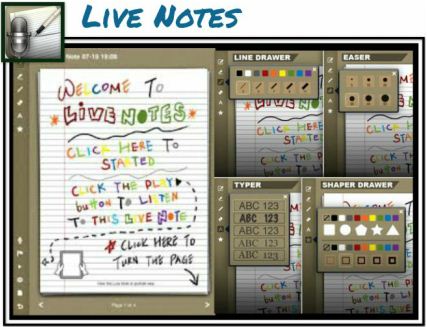
Live Notes

Live Notes is a colorful note-taking and sketching app that allows for simultaneous audio recording. Draw shapes and doodles during a lecture or meeting. Type text and choose from a variety of fonts and bright colors. Tap parts of a sketch to hear the audio that was recorded at the specific point in time when the sketch was drawn. 

Live Notes is a paid app, but you can try Live Notes Lite for free. 


Note Anytime

Note Anytime is an app for taking notes, sketching, and annotating PDFs. Caligraphy tools support improved letter formation providing assistance with sloppy iPad penmanship.  Use the app to easily import and markup PDFs. Export notes to popular social media sharing sites, like Twitter, Facebook and Drop Box. 

Note Anytime is currently a free app available in iTunes.


ScratchWorks

ScratchWorks is a note-taking app that allows users to take notes on one side of the screen and browse the web on the other. Type text notes or insert a sketch area into the notes for doodling. It also provides a custom math keyboard. 

ScratchWorks is a free app, available in iTunes.


Source:  Cool Tools for 21st Century Learners

Monday, 18 March 2013

Ipad App: Answer Pad

Saw this new app that allows you to turn your ipad into a "clicker" which is ideal for teaching as you can get immediate responses from students as you teach and adapt the lesson as needed based on real-time feedback.

http://theanswerpad.com/index.php/go-interactive/ is where you can check out all the details. I heard about it from one o fmy new fave websites Teachnology Tailgate who writes:

The Answer Pad is a free way (1 class per teacher up to 35 students) to use the iPad as an interactive answer sheet. This is great for any T/F, multiple choice, fill in the blank, etc etc type of test or quiz. The teacher uses the web interface to setup their class and get instant real-time results. Plus, everything The Answer Pad does is aligned to state standards.

Now, they released their latest update w/ Go Interactive, this basically turns your iPad into a "clicker system". It allows students to answer any question the teacher asks, and they use their iPad to respond, either tap on Y/N, T/F, thumbs up/down, fill in the blank, or draw their answer.
 
I don't have an ipad, but I have a SMARTboard and my teaching partner next door uses an ipad for everything... I am excited to try our a browser/web version of this when it comes out.

Saturday, 23 February 2013

ipad apps for Story Telling


Technology Tailgate posted these great ipad stroytelling apps:


Storytelling apps are one of the most powerful aspects of the iPad. They allows for collaboration and creativity that I couldn't really achieve before using the iPad. Here are some of my favorite Storytelling Apps. 
Feltboard (examples HERE and HERE)
Skitch ...for labeling ( example HERE)
Sock Puppets (example HERE)
Little Bird Tales (post with examples HERE from web tool but app is similar)

Tuesday, 12 February 2013

ipad apps for interactive and engaging classroom


Engaging Presentations using ipad apps writes:

If you are tired of PowerPoint and Keynote, it's easy to change up your normal routine. As much as I love these presentation tools, it's important to keep my audience engaged, and often a quick deviation from the usual is the perfect trick.
There are so many fantastic free iPad apps that are great for the classroom. Whether you have access to a single iPad that you use to create presentations for your students, or your students are creating their own presentations in a 1:1 classroom, you'll want to add these to your must-have list!

  1. Haiku Deck - feels a bit like powerpoint slides, but short bits of text
  2. Prezi - Great for presentations, like a slide show but on one page that zooms in and out of sections to show presentation.
  3. Screencasting - copies screen and allows voice integration. Great for showing a lesson.
  4. Educreations - works like a SMARTboard on your ipad
  5. Screenchomp - copy screen easily
  6. Doceri - screencasting, desktop control, and an interactive whiteboard combined into one
  7. Snapguide - create step by step guides
I have only used two of these before (Prezi and Screenchomp) so I found this list exciting to read about.

Have you used any of these in  your classroom? Tell us about it!!


A lot of the new edu-blogs I follow do this link-up thing, so I thought I would give it a try... add your link to a technology blog post you have:


Saturday, 2 February 2013

Mind Mapping

As an educator you have likely encountered mind maps used in a variety of ways. I love the visual organization and creativity mind maps allow.

I saw this cool way to use mind maps on ipads, ipods and such....


Check out the app here:

ipad, ipod, mind map app

Friday, 18 January 2013

ipad apps under $10

My school has quite a number of ipads in use by teachers and students. One student in my class uses his ipad constantly and my teaching partner is glued to his. I personally, do not have an ipad, nor do I have the desire to get one (at this time) but I do see their use in the classroom and so when I saw this post I thought I would share for any ipad lovers out there:

Technology Tailgate Blog has this list of apps on a budget

Obviously, since I don't have an ipad, I have not tried and tested these apps, but they are inexpensive and likely offer trials if you want to check them out.